
Nexus — Product guide
Test management that lives inside Jira. For QA leads, testers, release managers and Jira administrators evaluating or rolling out Nexus.
Product guide
Follow a release from a Jira requirement to designed tests, governed execution and evidence your team can use at release time.
What Nexus is
Nexus adds test management to Jira Cloud without asking your team to leave Jira. Test cases, test sets and test executions are real Jira issues, with real workflows, links, permissions and JQL. Everything Nexus adds (steps, runs, data sets, environments, releases, reports) sits on those issues or inside the Test Hub page of each project.
Nexus comes in two editions:
| Basic | Pro | |
|---|---|---|
| Test design, repository, cycles, manual and exploratory runs | Yes | Yes |
| Test data sets, versions, personal-data scanner, data-driven runs | Yes | Yes |
| CI results ingestion and the CI API | Yes | Yes |
| Environments, deployments, releases and readiness gates | Yes | Yes |
| Reports, saved views, dashboard gadgets, JQL functions, digests, Confluence and Excel export | Yes | Yes |
| Rule-based requirement checks, impact scoring, Quality Score | Yes | Yes |
| Model-based testing (state machines and decision tables) | Yes | Yes |
| AI requirement analysis and AI test generation | — | Yes |
Basic is free for up to 10 Jira users; Pro is US$9/month for up to 10 Jira users. Atlassian Marketplace manages licensing and billing. Basic has no AI. Pro's AI features run on your own AI account (Anthropic, OpenAI, Google, Moonshot Kimi or xAI Grok), so Nexus never bills you for AI usage and sets no usage cap of its own.
Get a project ready
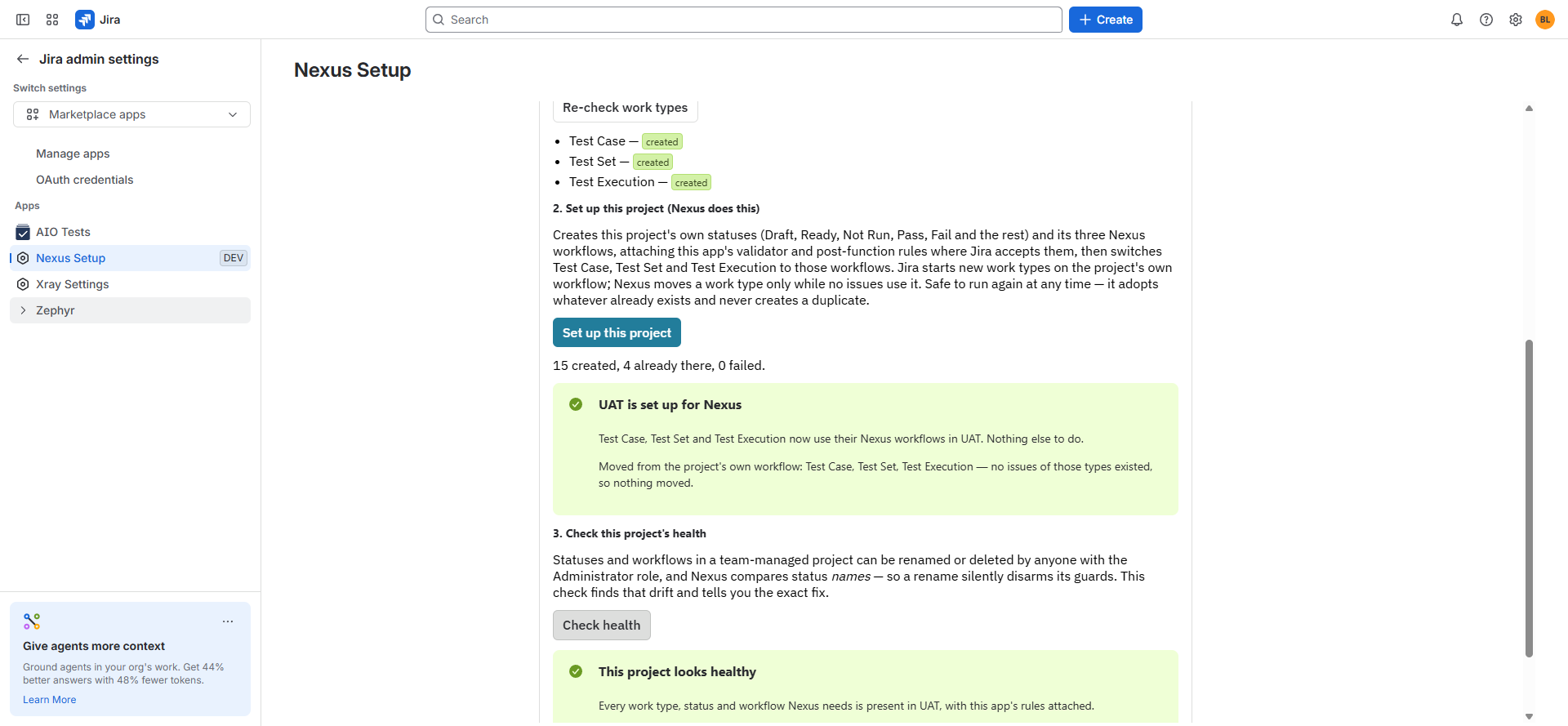
A Jira administrator installs Nexus from the Marketplace, opens Nexus Setup (Apps menu) and presses Create now. Setup creates the Test Case, Test Set and Test Execution work types, their statuses and workflows, and the guard rules on those workflows, and shows a live checklist and a health check. Both company-managed and team-managed projects are supported. The one manual step on either project type is adding Nexus's three work types to a project, because Jira offers no API for it; Setup tells you exactly what to click. You can add a sample project or sample data to try everything first.
Your first 15 minutes
- Run Create now in Nexus Setup and finish every item in the live checklist.
- Add the three Nexus work types to one pilot project, then run the health check again.
- Open Test Hub, create one Test Case and link it to a requirement.
- Add the case to a Test Set, create a cycle and complete one Test Execution.
Project settings to decide early
A project admin sets these in the Nexus tab under Project Settings. All are off, or keep today's behaviour, until you change them:
- Test case folders → Folder required. Every test case created or copied in Nexus must go into a folder. Cases made in Jira's own Create dialog, by AI, by import or by a migration are not checked.
- Execution behaviour. Assign the run to whoever records its result (only if the run is unassigned, or always; results recorded by hand only). Count failed runs as done is on by default; turn it off and a failed run stays "to do" in progress figures.
- Bugs Nexus creates. Priority, assignee, components, labels, a summary template and description header text for the Bugs Nexus raises.
- People → Restrict @mentions to project people. By default anyone who can browse the project can be @mentioned in a Nexus comment; this limits it to the people in the project's Jira roles.
Execution behaviour settings apply once the project uses its own settings rather than the site defaults.
Tour the Test Hub
Open a Jira project and select Nexus in the project navigation. The Test Hub is the working area for that project. Its pages share the same Jira issues and links, so moving between them changes the view of the work, not the underlying record.
| Page | What it is for | Use it when you need to |
|---|---|---|
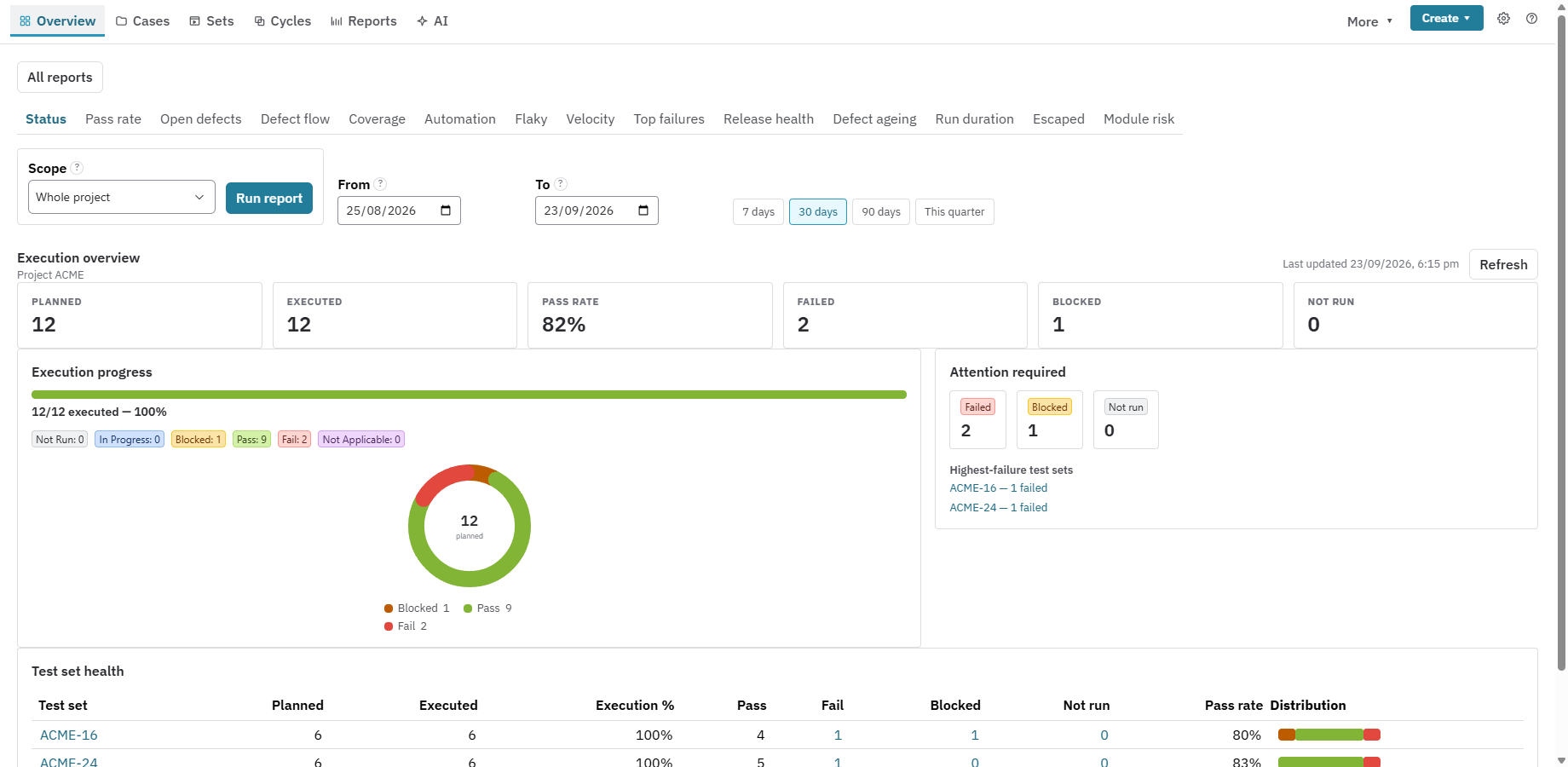
| Overview | The project's operational dashboard: execution progress, pass rate, failures, blocked work, stale evidence and test-set health. | Start a daily QA check, find the most urgent failures, or decide where the team needs attention. Change the scope and date range, then select Run report to refresh the view. |
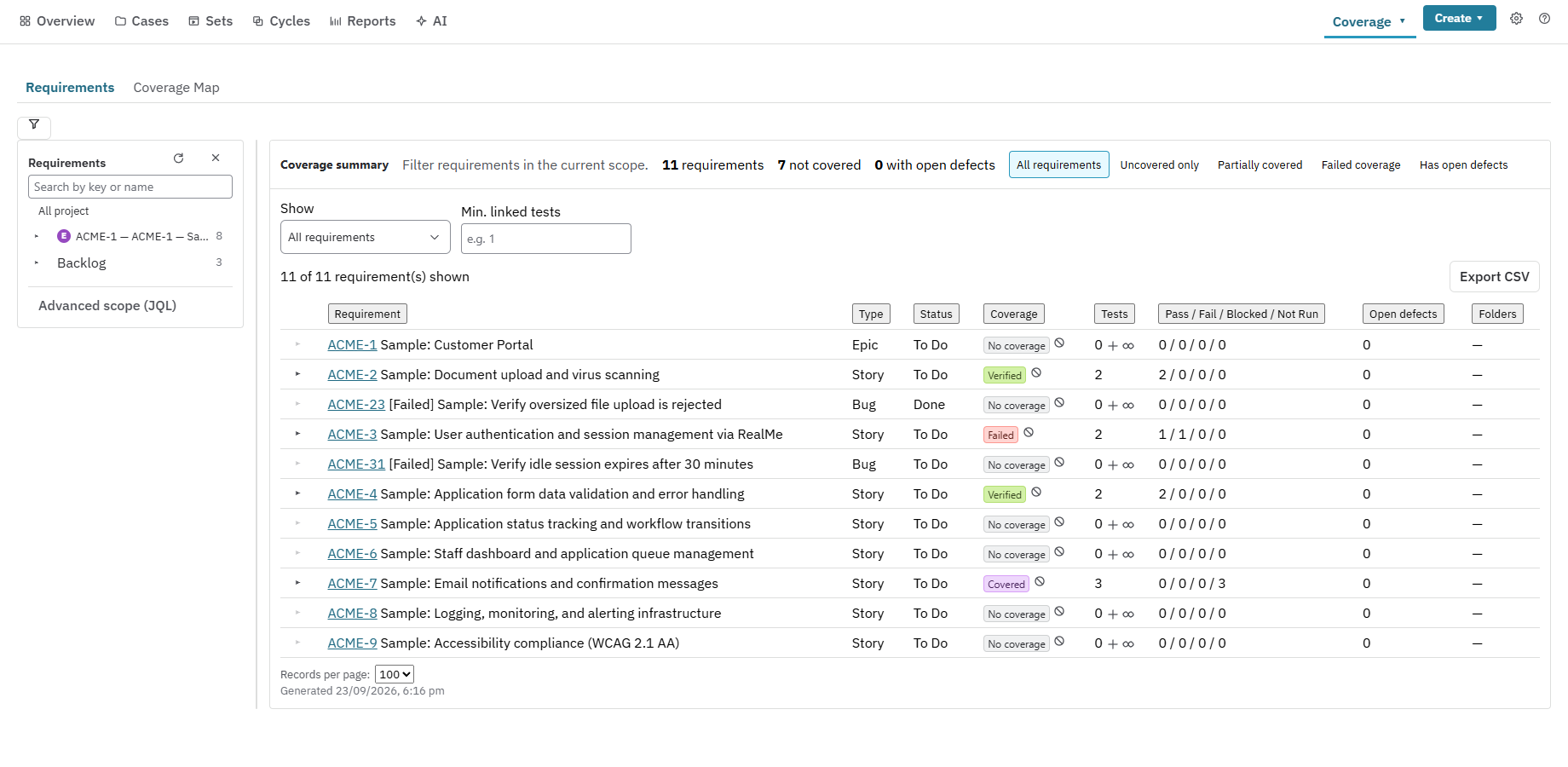
| Coverage | Requirement-to-test traceability. The Requirements view shows coverage state, linked tests, their latest results and open defects; Coverage Map gives a broader relationship view. | Find requirements with no tests, investigate failed or partial coverage, and check a sprint, release or JQL-defined scope before sign-off. Open a requirement row to see the evidence behind its status. |
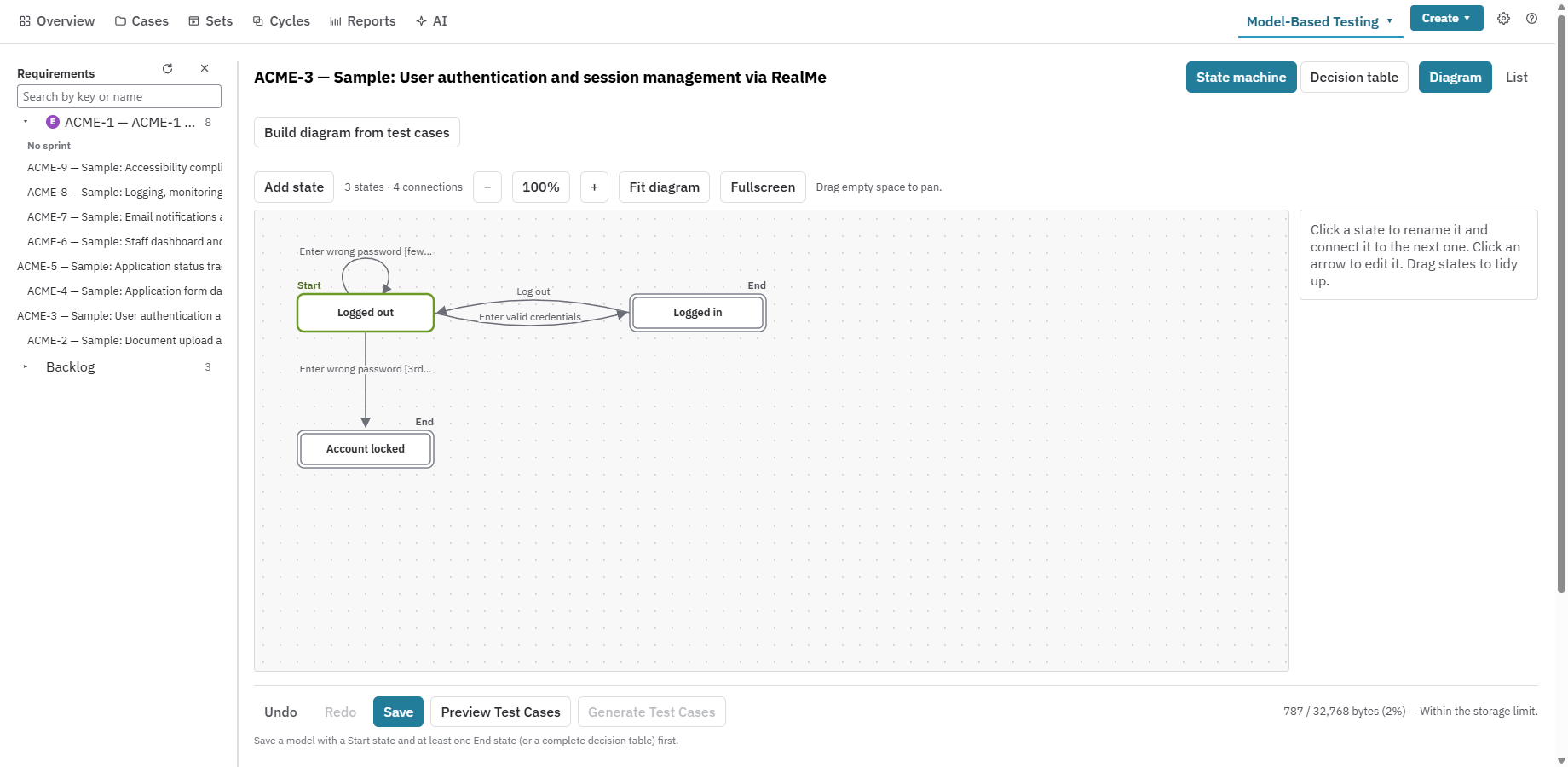
| MBT | Model-based test design using state machines and decision tables. Generated routes and rules become ordinary Nexus Test Cases. | Expose missing paths before writing tests, cover a complex workflow systematically, or turn a business decision table into reviewable cases without AI. |
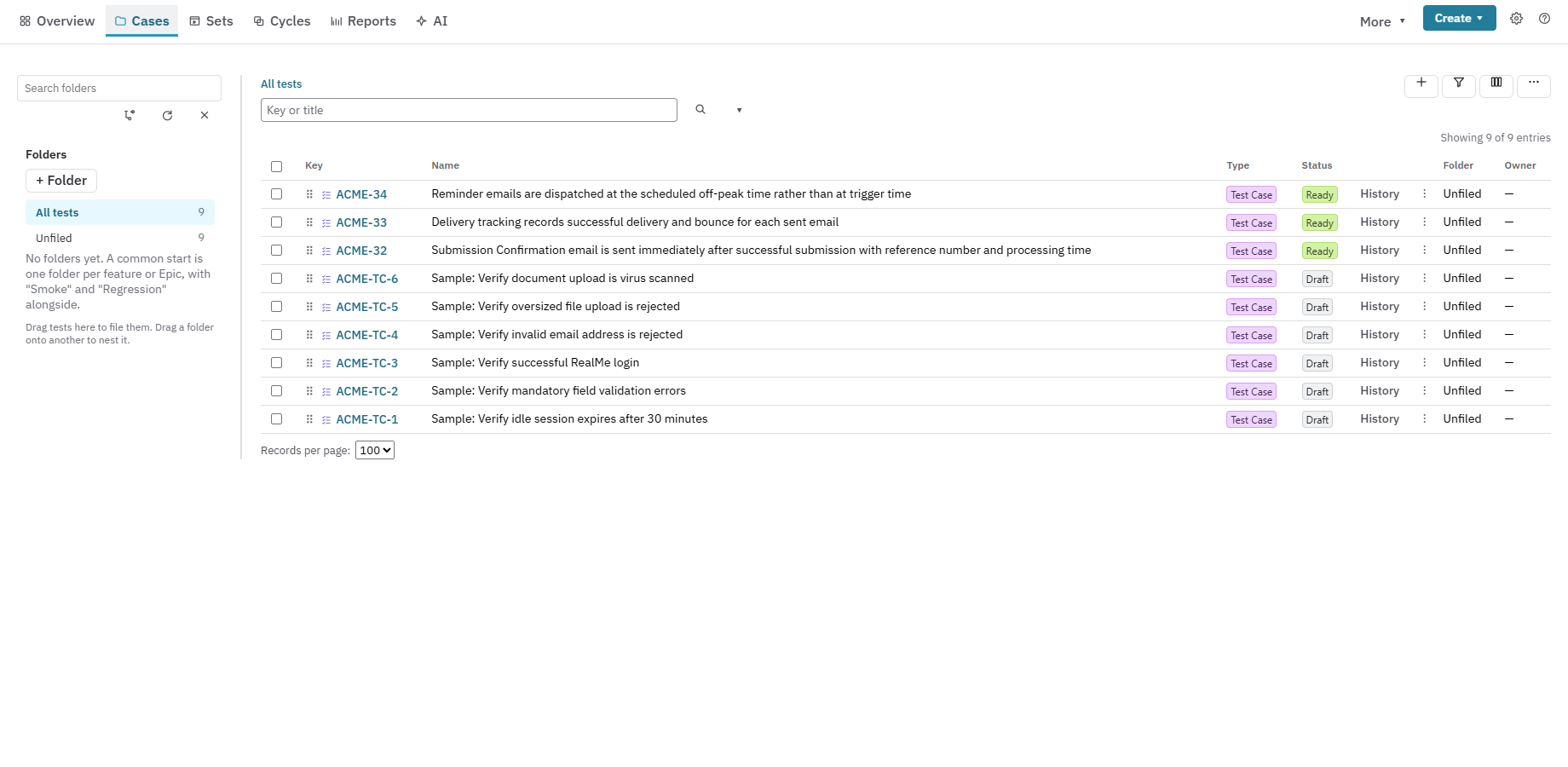
| Cases | The test-case repository and focused editor. Folders, filters, saved views and bulk actions sit beside the selected case's design, parameters, versions, comments and automation details. | Create or maintain the reusable test library, repair a case after the requirement changes, assign Automation Keys, or inspect its complete run history. |
| Sets | Reusable collections of Test Cases. A set can be a stable library such as a smoke suite, or the scope from which a cycle is planned. | Curate repeatable packs, assemble release scope, or reuse the same selection across sprints without copying cases. |
| Cycles | Planned execution work. A cycle shows its cases, runs, assignees, environments and progress. | Coordinate a test round, add cases, rebalance ownership and record results. |
| Defects | The Bugs found by Nexus runs, with their test, requirement, cycle, environment and current Jira status in view. | Triage open failures, find repeated or escaped defects, and confirm a resolved Bug has a successful re-test behind it. Only Bug-type Jira issues count as defects in Nexus reporting. |
| Test Data | Versioned data sets, typed columns, environment restrictions, personal-data scanning and usage history. | Give tests repeatable inputs, bind rows to data-driven runs, publish a safe version, or find stale and unused test data. |
| Reports | The reporting centre for traceability, execution, governance, impact, environments, releases and test data. | Answer a defined question, save a reusable view, export evidence, publish to Confluence, or add the corresponding gadget to a Jira dashboard. |
| AI (Pro) | Requirement quality assessment and generated Test Case drafts. Findings and drafts remain reviewable until a person decides. | Clarify a weak requirement, generate test ideas, and review findings and drafts. |
| Environments | The environment catalogue plus deployments, events, health, drift, configuration snapshots, freeze windows and bookings. | Record what is deployed, decide whether a pass is still current, compare configuration, or coordinate a shared test environment. |
| Releases | Release scope, milestones, environment matrix, readiness gates, sign-offs, notes and calendar. | Ask “Can we release?”, investigate a failed gate, record a go/no-go decision and retain the evidence that supported it. |
The top bar also has Create for common Nexus records. The gear menu opens My Settings, Project Settings, Import / Export and Audit Log. Help explains the page you are on. A Test Case opens in the Test Hub in place of the Cases list, so you can edit it and return without losing the repository context.
Nexus also puts the same work on Jira issues: Test Steps on a Test Case, Run on a Test Execution, Cycle on a Test Set and Testing on a requirement. Use those cards when you are already working on the Jira issue; use the Test Hub when you need project scope, filters, comparison or coordination.
Configure Nexus
Settings are split by scope. This prevents a tester's preference from changing a project rule, and prevents one project's process from changing another project.
My Settings: choices for one person
Open the gear menu and select My Settings. Today this page sets your default project, used to pre-select a project in cross-project pickers such as reporting. It does not change the project you have actually opened and does not affect anyone else.
Project Settings: how this project works
A project administrator opens gear → Project Settings. Each section has its own Save action; a change applies to this project only. Site defaults continue to apply until the project opts into its own value.
| Settings group | What you configure | Practical starting point |
|---|---|---|
| Test design | Field Configurations, Custom Fields, Case Types, Case Statuses and Case Priorities. | Require only the fields that influence execution or reporting. Keep the first repository shallow; add cross-project reuse only when more than one project really shares the same behaviour. |
| Execution | Test Configurations, Environments, Run Statuses and Automation Statuses. | Create the real promotion path first (for example Development → Staging → Production), add aliases used by CI, then create configurations for browser, device or region values. |
| Reporting | Report Preferences. Jira continues to deliver its own notifications. | Start with one weekly digest on a watched release or QA tracking issue. |
| Data & AI | Storage Manager and AI. Storage controls test-data budget, default classification, allowed test domains and reservation times. | Default new data to synthetic and keep reservation times shorter than a normal test session. |
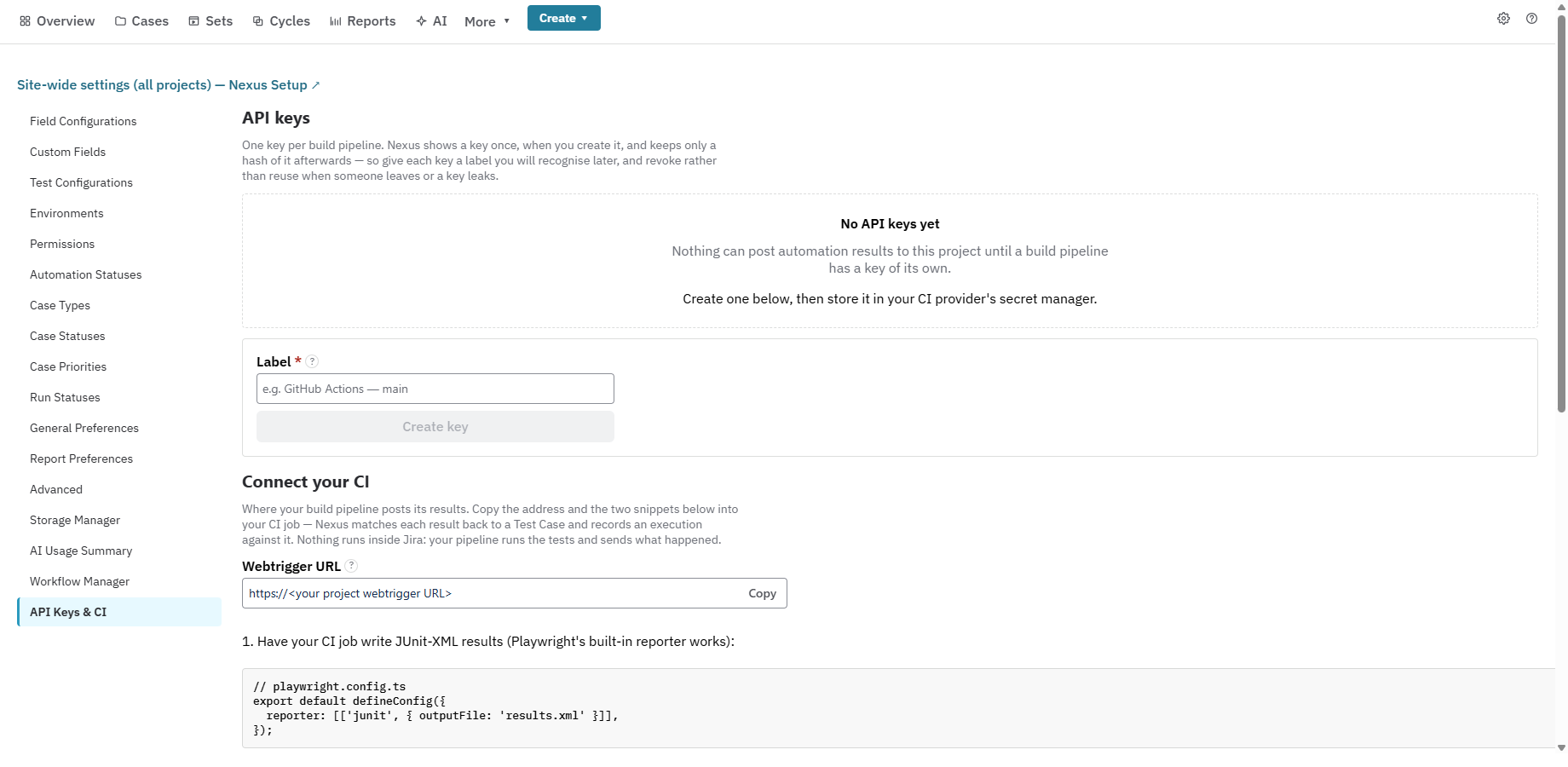
| Automation & CI | CI API keys, results URL, pipeline snippets and delivery log. | Use one labelled API key per pipeline or environment and check the delivery log after the first result. |
| Admin | General Preferences, Permissions, People, Advanced governance and retention, Workflow Manager and copying settings to other projects. | Decide the requirement work types, folder rule, execution behaviour and Bug defaults first. Confirm Test Designer, Test Executor and Approver roles have members. Use Workflow Manager after Jira workflow changes or an app upgrade. |
Several sections are deliberately read-only summaries of Jira configuration. Nexus uses Jira's priorities, permissions and workflows instead of maintaining a second security or status model. Follow the link from the summary when the change belongs in Jira.
General Preferences deserves an early review. It controls the Nexus work types in the project, what counts as a requirement, folder rules, execution behaviour, Test Case types and the defaults for Bugs Nexus creates. Changing these after a large library is in use can alter what new work requires, so agree the rule with the QA lead and project administrator first.
Workflow Manager is a health view and repair point. It shows the three workflows Nexus provisioned and whether their validators, conditions and post-functions are attached. Run it after someone edits Jira workflows, after an app upgrade, or when a transition no longer enforces the expected rule. Use Auto fix or the guided Jira step shown by Nexus; do not create a second parallel workflow with similar names.
Nexus Setup: site administration
A Jira administrator opens Apps → Nexus Setup for settings that affect the whole site:
- provision and health-check the Nexus work types, statuses, workflows and project roles;
- set up individual team-managed projects and repair drift;
- connect the site's Pro AI account and choose the provider and model;
- create sample data for evaluation; and
- export or restore a whole-site or project backup.
Project administrators can open the site-wide destination from the link at the bottom of Project Settings, but Jira still enforces the administrator permission required for site changes.
Change settings safely
- Record the behaviour you want to change and which project or site it belongs to.
- Change one related group at a time and press that section's Save button.
- Run a small proof: one transition, one manual result, one CI delivery or one AI draft.
- Check Audit Log, Workflow Manager or the relevant delivery log for the recorded outcome.
- Copy settings to other projects only after the pilot behaves as expected.
Understand the workflows
Nexus uses real Jira workflows. Conditions decide who may attempt a transition; validators decide whether the record is ready; post-functions update traceability, coverage and defects after the transition. The result is visible to Jira Automation, JQL, boards and dashboards.
Test Case workflow
| State | Meaning | Normal next action |
|---|---|---|
| Draft | The design is being written or repaired. | Add the design and required fields, then Mark Ready. |
| Ready | The case is approved for planning and execution. | Add it to a set or cycle. Send it to In Repair before changing a design that already has completed executions. |
| In Repair | A previously ready case needs a controlled design change. | Edit, review and Mark Ready again. |
| Obsolete | The case is retired from new cycles and automated matching. | Leave it for history, or Reopen it to Draft if it is needed again. |
Mark Ready checks every project-required field. When the project requires steps, each step also needs an expected result. A case cannot become Obsolete while it has linked Not Run or In Progress executions. Once a case has terminal execution history, Nexus locks the steps unless the case is In Repair, preserving what earlier evidence meant.
Test Execution workflow
| State | Meaning | What happens |
|---|---|---|
| Not Run | Planned, with no active attempt. | Start creates a fresh run snapshot. |
| In Progress | A tester is recording the attempt; CI can also supply an automated result. | Step results, actual results, evidence, time and comments build the execution record. |
| Pass / Fail / Blocked / Not Applicable | Terminal outcome for that attempt. | Nexus rolls up step results, updates requirement coverage and applies the project's defect policy. Blocked can be resumed. |
Manual and automated results use the same post-transition path, so coverage and defect behaviour do not depend on how the result arrived.
Test Set and cycle workflow
Use the Jira Test Set status and project permissions to control completion.
End-to-end delivery workflow
- Define scope. Start with Jira requirements and choose the sprint, Fix Version, release or JQL scope that matters.
- Design and trace. Create Test Cases in Cases or MBT, link each to the requirement
with
Tests, review the design and mark it Ready. - Assemble reusable scope. Put stable groups into Test Sets such as smoke, checkout or regression. Avoid rebuilding the same selection for every cycle.
- Plan the run. Create a cycle, choose environments and data, add cases, set assignees and confirm the planned count before execution starts.
- Execute through one record. Testers record manual evidence and CI sends automated evidence. Both create Test Executions and update the same coverage model.
- Triage failures. Link or raise a Jira Bug, keep the failed execution, fix the product, then add a new run for the re-test. Do not replace the failed evidence.
- Check currency and coverage. A newer deployment can make an older pass stale. Use Coverage and Environments to find the exact tests that need another run.
- Decide and retain evidence. Review release gates, investigate exceptions and record the go/no-go sign-off with the release evidence.
1. Design tests
Choose the right test design
A test case is a Jira issue. It has its own workflow (Draft → Ready → In Repair →
Obsolete), links to the requirements it tests (Tests), and appears in JQL, boards and
dashboards like any other issue. Guard rules keep the design honest: a test case cannot
be marked Ready without steps and an expected result on each step, and its steps are
locked while an execution is in progress.
Choose the design that fits the test:
- Step table: action, data and expected result per step, with preconditions, inline images and a size meter.
- Gherkin (BDD): Feature and Scenario text. Each Gherkin test case
exports as a
.featurefile tagged with its issue key, so Cucumber results map straight back. - Checklist: a list of items, each recorded Pass, Fail or N/A.
- Free text: a narrative or checklist of up to 8,000 characters, recorded as one result per run.
Edit steps quickly. Find and replace works across a test case's actions, test data and expected results (match case, whole word, all or selected steps). Tick several steps to delete them at once; both come with an Undo, and nothing is saved until you press Save.
Reuse, parameterise and version
Reuse instead of copying. A step can call another test case in the same project; the called steps expand when a run starts and every caller is flagged for review when the called test changes. Shared libraries let you copy a test case into another project with a link back to its source, so you can see when the original has moved on.
Parameters and datasets. Write the steps once with <<<name>>> tokens and give the
test a table of values; every run then has one iteration per row. A Test Configuration
(for example "Staging, Chrome") can override values for a whole run.
Versions. Save a version of a test case's steps with a note, compare any two versions step by step, and restore an earlier one. A version is also cut automatically each time the test case reaches Ready. Up to 50 versions are kept per test case. Archive a version to hide it without deleting it, and choose to copy the test case's comments into a new version (the newest 50; restricted comments are never copied).
Generate coverage from a model
Model-based testing. Draw a feature as a state machine, or fill in a decision table, and Nexus turns every route or rule into an ordinary test case, with no AI involved.
Organise and migrate the library
Organise the repository. Nested folders, server-side search with filters and saved
views, bulk actions, custom fields (up to 20 per work type, optionally required), and
Test Sets that work either as reusable libraries or as execution cycles. Reorder
folders with Move up / Move down or by dragging, create a subfolder in place, and move
cases into a new folder from the Move to picker; a copied test case stays in its
folder. A custom field can carry a short description that testers see as its "?" help,
and a field can be deleted together with its stored values. Selected test cases can have
their Automation Key set in bulk (up to 50 at a time, for example {caseKey} for
each case's own key), their requirement links removed in bulk, and their custom field
values updated from a CSV file after a preview. People pickers list you first.
Retire and bring back. A test case you no longer need is marked Obsolete. It is then left out of new cycles and ignored by automated results. If you retired it by mistake, Reopen it from the test case page and it goes back to Draft.
Moving from another tool. Import starts with "Where are your tests coming from?",
shows how to export from that tool, maps the columns of its CSV automatically, and lists
what it found and what will not carry over before anything is written. A file can carry
each test case's owner (matched to a person who can be assigned in the project) and its
requirement links, and required Nexus custom fields are checked in the preview. You can
export everything back out as CSV, JSON or .feature at any time.
2. Manage test data
Tests often say "log in as a customer with an overdue invoice" and nobody knows which customer. Nexus keeps governed, synthetic test data next to the tests that use it.
Keep data repeatable and safe
- Data sets live on the project's Test Data page. Each set has typed
columns and rows with a row key such as
cust-3. You edit a draft and publish it as the next version; a published version never changes, so a past run always shows the data it used. Versions can be compared row by row. - Classification and scanning. Every set is marked synthetic, masked or sensitive. A scanner flags likely real personal data on import and edit: card numbers, New Zealand IRD, NHI and bank account numbers, phone numbers, and e-mail addresses outside reserved test domains. Real card numbers are always refused; the payment providers' public test numbers are allowed. Values in a sensitive set are masked for everyone, and revealing one is logged.
- Environment scoping. A data set can be limited to the environments it is valid in, so a run in Production cannot pick up Staging-only accounts by mistake.
- CSV import and export handle large sets (5,000 rows by 50 columns round-trips exactly), with a preview of how each value will be read and protection against spreadsheet formula injection.
- Linking and running. Link a data set to a test case, pinned to a version or
following the latest. Steps use the same
<<<name>>>tokens as parameters, and the step editor offers an "insert value" picker. A run then has one iteration per chosen row inside one Test Execution, never one Jira issue per row. Planning a cycle can bind each test case's data at the same time. - Traceability. Linking, running, exporting and revealing are recorded, so every data row can be traced to the test cases and runs that used it. Old usage records are removed by the same retention settings as the rest of Nexus.
3. Plan and execute
Plan a cycle
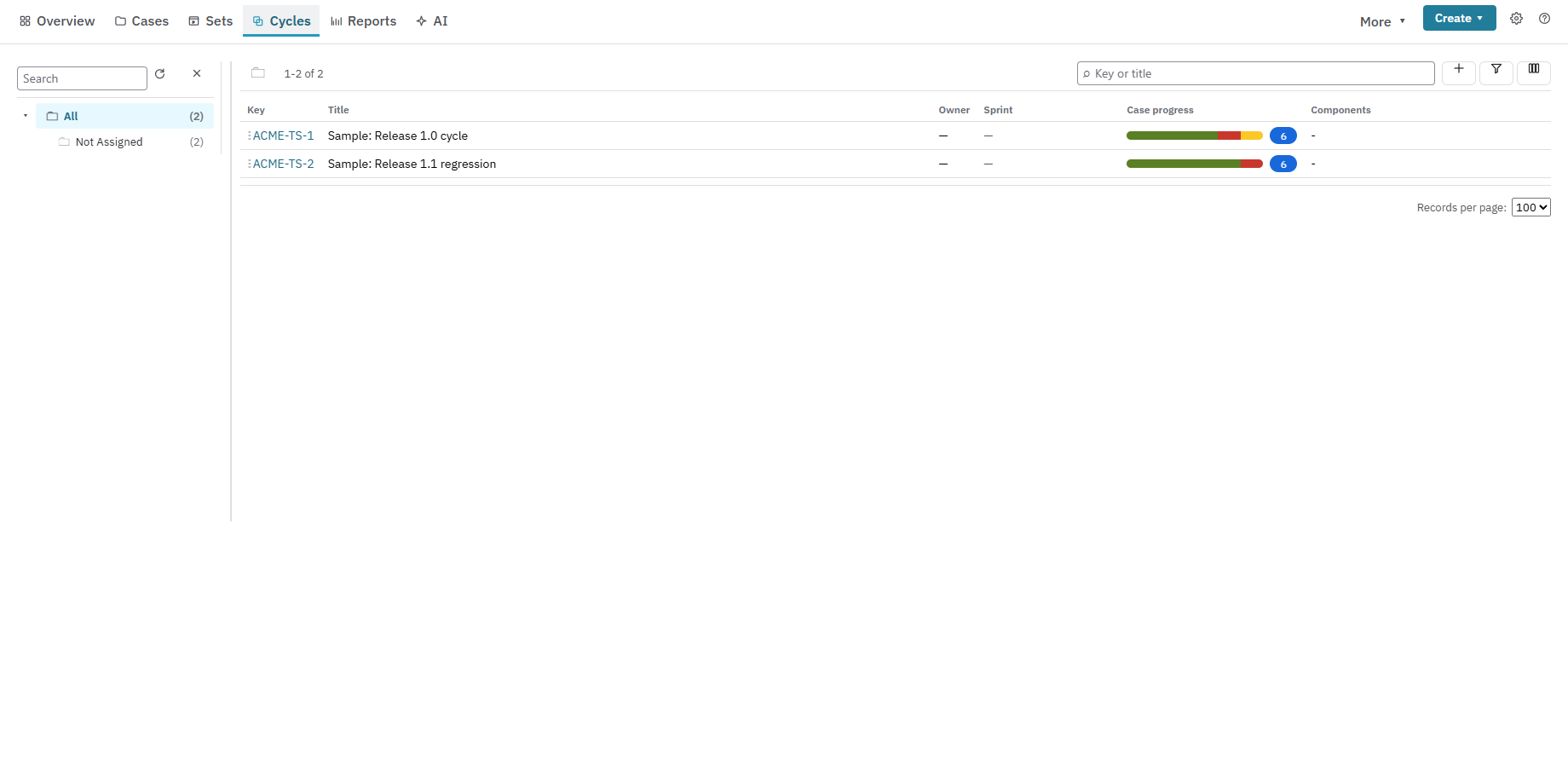
Cycles. A Test Set can be an execution cycle: add test cases, assign testers, and Nexus creates one Test Execution per test case. Cycles show progress and the runs in scope.
Several environments at once. When you plan a cycle from a set of test cases, pick more than one environment and Nexus plans one run per test case and environment, for example "40 cases × 4 environments = 160 runs" (up to 1,000). The cycle's own Add Cases picker works the same way.
- Choose your columns. A Columns button on a cycle's execution screen shows test case fields (priority, owner, components, labels, automation and your own custom fields), latest-run fields and cycle fields. Your choice is saved for you, per project.
Execute and capture evidence
The manual runner. Testers run step by step in the issue's Run card or the Test Hub: record a result per step, attach screenshots and files as evidence, see elapsed time against the estimate, and log time to Jira if your project uses worklogs. A failed step can create a Bug that is already linked to the run, the test case and the requirement. Starting a run is protected against two people starting the same execution at once.
Defects are Bugs. A Bug raised from a run can be linked to the requirement in the same step (Also link to the requirement, ticked by default). The Bugs Nexus raises use your project's Bug settings, and the description header text goes above the failure details. Only Bug-type issues count as defects in Nexus reports, the Defects tab and the requirement's Testing panel.
Comments with @mentions. Type @ and a name in a Nexus comment box (test case
comments, a run's Comments, the linked-issue view) to mention someone, up to 10 people per
comment. Jira sends its own "mentioned you" notification.
The requirement's Testing panel lists each linked test case with its run count and last result, and an Open in Nexus link. It has a Defects tab, Show failed steps for a case whose latest run failed, sorting by key, result or last run, a Hide obsolete switch, and a quick Pass / Fail for a case's newest Not Run run, behind a confirmation.
Exploratory sessions. Run a timed session against a charter with no test case behind it. Record findings as you go (note, outcome, evidence), raise a Bug from a finding in one click, and keep the session log with the cycle.
Environments on every run. Each run records the environment it ran in (and optionally the build, commit and component), picked from your environment catalogue, so results from different environments never overwrite each other.
4. Connect CI
Nexus never runs tests inside Jira. Your tests run in CI and their results come back to Nexus.
How a CI result becomes Jira evidence
- One endpoint per site, one API key per project. A project admin creates an API
key in the Nexus project settings, on the CI page (shown once, stored only as a
salted hash, revocable). CI posts results with
Authorization: Bearer <key>and?project=<KEY>. When you create a key, choose what it Can use: send results, the CI API. Keys made earlier keep full access. - Formats: JUnit XML (JUnit, pytest, Cypress and Playwright's JUnit reporter), Robot
Framework
output.xml, NUnit 3 XML, TestNGtestng-results.xml, Cucumber JSON, xUnit.net v2 XML, Mocha JSON, mochawesome JSON, Playwright JSON and a plain JSON format. Nexus detects the format, or you name it with&format=. We have checked seven frameworks end to end: Playwright, Selenium with pytest, JUnit, Cucumber, Mocha, xUnit and Cypress. Postman's Newman works through the upload CLI below. - Matching is exact. A result is matched to a test case by the Automation Key in the
test's title (for example
NEX-123: login works) or, for Cucumber, a scenario tag. Where a name can't start with a key, the key can sit inside it (test_login[NEX-11]), be written asNEX_11for Java, .NET and Python names, or be set as atest_keyproperty or trait. A result with an unknown key is counted as unmatched in the delivery log rather than guessed, because a wrong match is worse than none. A result for an Obsolete test case is skipped and counted, never recorded. - Context: add
&environment=,&build=,&commit=,&component=and&testSet=to put results in the right place. With&dataSet=<id>, a test namedlogin works [cust-3]becomes thecust-3iteration of one data-driven run. - The CI API does more than results: create or update test cases (idempotently, with your own external key), add one or several (up to 25) to a cycle, record a single result, set or clear a run's assignee, and record a deployment or an environment event, in batches of up to 25 operations.
- What happens on receipt: Nexus reuses or creates the Test Execution, links it, snapshots the steps, rolls up the result and transitions the issue, exactly as a manual run would. One bad result never stops the rest of the batch. The last 100 deliveries are listed on the project's settings page.
Copy-paste pipeline steps for GitHub Actions, GitLab CI, Jenkins, Azure Pipelines and Bitbucket Pipelines are in Sending test results from CI.
Ready-made integrations
You don't have to write the upload step yourself. Download a helper from the integrations page: a Playwright reporter, a pytest plugin (Selenium suites included), a GitHub Action, or the nexus-upload command-line tool for any other CI system. Each reads your results URL and API key from CI secrets, never prints the key, and retries once if the network drops.
5. Track environments
A pass proves only the build it ran on. Nexus records what is deployed where, so it can tell current evidence from stale evidence.
- Environment catalogue. Define environments per project (or site-wide defaults),
with aliases such as
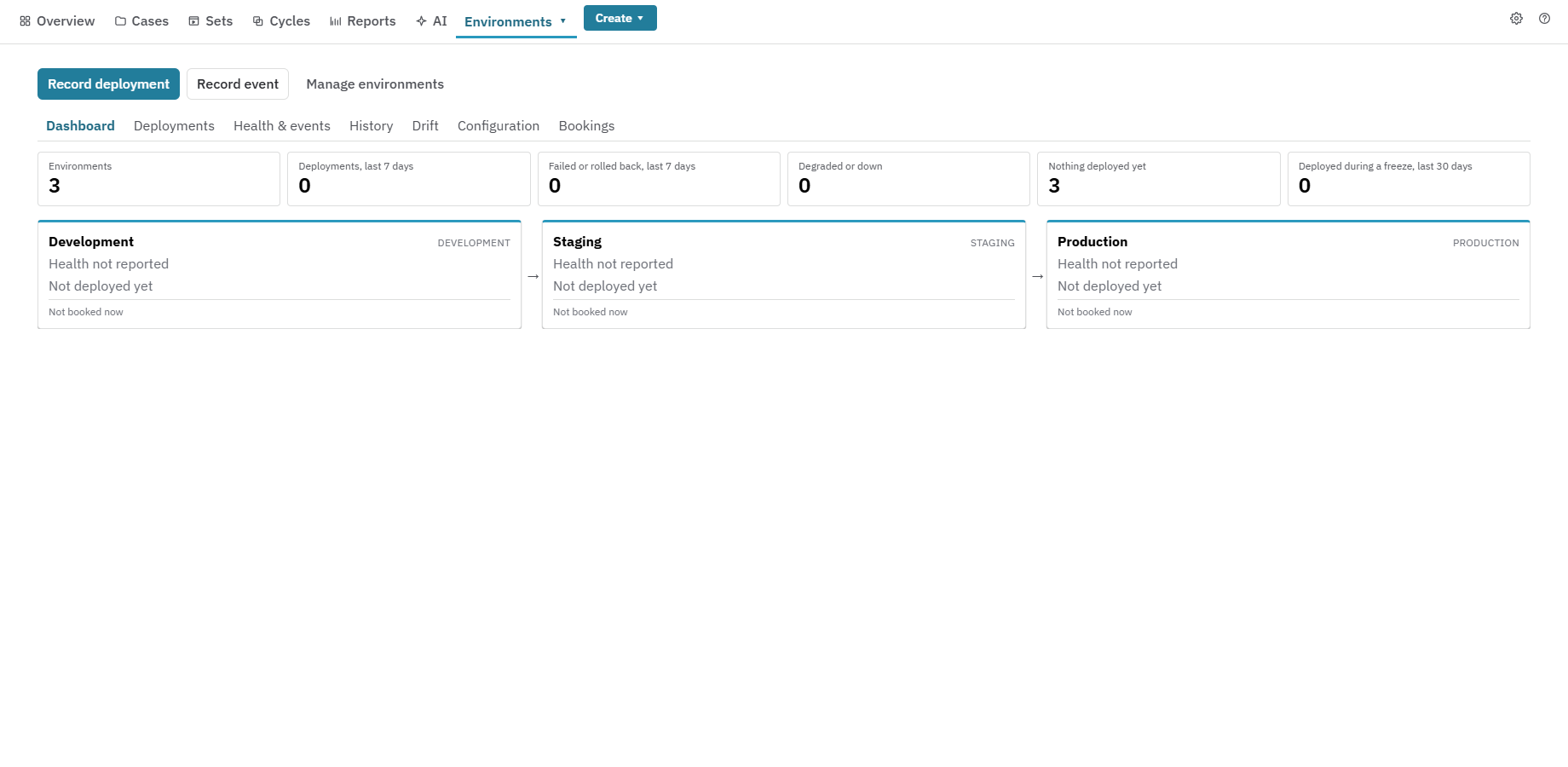
stgfor Staging, a type and a promotion order. Environments are retired, never deleted, so history stays readable. - Deployments and events. Record a deployment (version, build, components) by hand or from CI, plus events such as an outage, a data refresh or a configuration change.
- Currency. A pass stays current until a newer build, or another event that invalidates results, reaches that environment. After that the result is marked stale, requirements show it on their Testing panel, and a Re-run stale tests plan puts exactly those tests into a cycle.
- The Environments page shows a card per environment in promotion order with its latest deployment and booking, plus Deployments, Health and events, History, Drift (expected against deployed version per component), Configuration snapshots compared side by side, and Bookings. Anyone on the project can book an environment; freeze windows are set by admins. Overlaps and deployments during a freeze are flagged, never silently blocked.
- Found in. A Bug raised from a failed run records the environment it was found in, which feeds the defect escape report.
6. Govern releases
Release governance brings together the test evidence already attached to requirements, executions, environments and builds. It gives release owners one place to assess that evidence and record the decision.
- Releases group Fix Versions, sprints or a saved search, with target environments, milestones from built-in templates (Standard, Hotfix, Emergency), links between releases, your own properties and a status history.
- The Matrix shows every release against every environment: Verified, Stale, Failed, or Deployed during a freeze, with a drill-down to the tests behind each cell.
- Readiness evaluates the gates you configure and opens with "Can we release?": a verdict, the pass rate per target environment, the Quality Score for the release scope, flaky tests in scope, and an "Attention required" list. A go or no-go decision is recorded as an append-only sign-off that keeps the gate results as they were at that moment.
- Workflow guard. The "Validate requirement is tested" rule can block a requirement's transition until it has passing tests, and optionally a current pass in the environments you choose (for example Production).
- Release notes are generated as Markdown or a Confluence page, and a calendar shows releases by timeline, month, week or year.
- Audit trail. Configuration changes and deletions are logged with who made them. Release and deployment records, test case change history, reviewed AI findings, the change log and the "Not testable" history are kept for seven years by default (adjustable); test case history older than a year keeps who, when and what changed but drops its copy of the steps to save space.
7. Use AI safely (Pro)
Nexus Pro uses AI for requirement analysis and test generation, with review before findings or generated cases reach Jira. A person decides what reaches Jira.
Your AI account, your terms. A Jira administrator connects one AI account for the whole site on Nexus Setup → AI: Anthropic, OpenAI, Google, Moonshot Kimi or xAI Grok. The key is stored as a Forge secret and never sent to the browser. Your AI provider's terms, regions, usage limits and billing apply; Nexus does not offer region-pinned AI processing.
AI output is a draft, not a sign-off. Findings and generated tests are suggestions for a person to review. They are not an authoritative or legally binding quality decision, and Nexus is built so that nothing the AI produces reaches Jira without a person's decision.
8. Report quality
The Reporting center (Test Hub → Reports) groups reports in eight categories. Each card states the question it answers and opens in one click:
- Quality & Governance: the Nexus Quality Score (one number out of 100 with a published formula and what is taking points off it), and the governance rule trend.
- Traceability: summary, detail (an audit table per requirement), matrix (one grid row per requirement), defect traceability (which run found each Bug, and how many escaped testing), and coverage by Fix Version or sprint.
- Execution: cycle report, cross-execution comparison (regressions and fixes between runs or cycles), burndown for a sprint, epic or cycle, defect trend, flaky tests, workload by tester, capacity plan (the work ahead per person per week, for the weeks you choose), test case ageing.
- Impact: which requirements changed after analysis and how much testing that puts in question.
- Cross-project: the same headline figures side by side for up to ten projects.
- Environments & releases: environment coverage, release readiness, cross-environment flaky tests, defect escape by environment, environment blockage, and deployment frequency and lead time.
- Test data: data-set usage, results by data row, unused and stale data sets, and consumable-data burn-down.
- Tools: ready-made JQL recipes.
Most reports export to CSV or Excel, can be printed or saved as PDF from your browser, and can be saved as named views (private, or shared with the project). Reports can be published to Confluence as a page. Export file names carry the date and time. Choose columns… in the Export menu picks the columns, remembered for each report in your browser. The Cycle report includes step comments, and test case keys in the ageing, cycle, flaky and traceability reports open that test case in Nexus. Only Bug-type issues count as defects in reports.
Dashboards and Jira-native tools. Four dashboard gadgets can go on any Jira
dashboard today: Coverage Status, Test Execution Status, Requirement Quality and
Burndown. Four JQL functions — testsOf, requirementsOf, executionsOf and
failedTestsIn — let you build your own filters and boards within Jira permissions.
A scheduled digest posts coverage, pass rate, defect figures and the Quality Score as
a comment on an issue you choose. Jira notifies its watchers; Nexus sends no e-mail
of its own.
Get the most from Nexus
Nexus works best when the team treats it as the evidence layer for delivery, rather than a separate QA filing system. Keep scope, ownership, results and defects current in the same Jira project where product work is planned.
Give each role a clear job
| Role | Owns | Healthy signal |
|---|---|---|
| Test Designer | Test design, requirement links, data and reusable sets. | Ready cases have a clear purpose, expected results and a current requirement link. |
| Test Executor | Run results, actual results, evidence, comments and defect links. | No run is left In Progress without an owner or next action. |
| Approver / QA lead | Scope, coverage exceptions and release recommendation. | Coverage gaps are accepted explicitly or planned before sign-off. |
| Project administrator | Project Settings, roles, workflows, automation and retention. | Workflow Manager is healthy and the manual and CI paths work after a change. |
| Jira administrator | Nexus Setup, site health, Pro AI account, backup and restore. | Site health is green, AI is governed centrally and a recent backup is available. |
Use a simple operating rhythm
Every day
- Open Overview and investigate new failures, blocked runs and stale results.
- Open the active Cycle and assign anything unowned; close abandoned In Progress runs by recording the real outcome or resetting the attempt with a note.
- Triage a failed run from the execution record. Link the existing Bug when it is the same problem; raise a new Bug only for a distinct defect.
Once a week or each sprint
- Review Coverage → Uncovered only for the sprint, Fix Version or saved JQL scope.
- Review cases flagged by requirement changes, flaky tests and Test Case ageing.
- Check the CI delivery log for unmatched Automation Keys.
- Publish one digest or dashboard that the delivery team actually reads. Remove reports that do not drive a decision.
Before a release decision
- Confirm the release scope and target environments.
- Check that the current deployment, build and environment are attached to the runs.
- Resolve or accept uncovered requirements, stale passes, blocked runs and open Bugs.
- Run the release-readiness report and open every failed gate; a percentage alone is not a sign-off.
- Record the go/no-go decision and generate release notes with the supporting evidence.
After configuration or process changes
- Run the Setup or Workflow Manager health check.
- Prove the smallest affected path before rolling the change into other projects.
- Read the Audit Log and relevant delivery log. A green screen without the expected recorded action is not proof that the workflow works.
Practices that keep the data useful
- Link at design time. A Test Case without a requirement can run, but it cannot prove requirement coverage. Add the link before Ready where possible.
- Keep one stable Automation Key. Put it in the automated test name or supported property and never reuse it for another behaviour. Treat unmatched results as a setup problem, not a result to attach manually.
- Create a new run for a re-test. Keep the failed run and its Bug intact. A new run shows whether the fix worked and preserves the sequence for audit and trend reports.
- Record environment and build. A pass without deployment context cannot show whether the current release is covered, and Nexus cannot detect when it becomes stale.
- Use sets for stable intent, cycles for a specific attempt. A smoke set can be reused for years; each sprint or build gets its own cycle and execution history.
- Prefer synthetic, versioned data. Publish the data version used by the run and reserve consumable rows instead of sharing informal test accounts in comments.
- Review AI decisions, not only AI output. Edit findings into clear requirement comments, accept only useful drafts, dismiss weak ones and use the effectiveness view to decide whether the chosen model helps your team.
- Pilot settings before copying them. Required fields, result rules and notifications can create friction at scale. Prove them in one project and copy the settings only after the team can complete the full workflow.
Your data and permissions
- Nexus app data is stored in Atlassian's platform. Nexus runs on Atlassian Forge. Test designs are stored on Jira issues; runs, history, data sets and environment records are stored in Forge storage for your site. There is no Resync-operated server. When a user runs a Pro AI action, the required requirement content is sent to the AI provider connected by your Jira administrator, under that provider's terms.
- Jira permissions apply. Nexus checks the user's own Jira permissions for every read and write, including issue-level security: an issue you cannot see does not appear in the review queue, reports or search.
- Edit test steps through Nexus, not by hand. Test steps are kept in a Jira issue
property called
testSteps. Atlassian's MCP server (editJiraEntityProperty) and the Jira REST API can write that property directly, but don't: use the Nexus step editor, import, the Nexus Rovo actions or the Nexus CI API. A direct write skips the step lock (steps that already have results stay locked until the case is In Repair), the saved version Nexus keeps for compare and restore, and the step count that JQLtestStepsCountsearches use. If Nexus later finds a wrong step count, it corrects it and adds "Steps changed outside Nexus" to the case's history, but the lock and the version are still missed. - Retention. App-owned working history is kept for 180 days by default, configurable per project; audit records are kept for seven years by default.
- Backup and restore. Atlassian's site backup does not include app data, so Jira admins can export everything Nexus stores and restore it later (Nexus Setup → Backup & Restore). Secrets and run commands are never included. See Back up and restore Nexus data.
- API keys. CI keys are stored only as salted hashes and shown once, and each key can be limited to what it needs.
- English only. The interface and all AI output are in English.
Back up and restore Nexus data (Jira admins)
Why Nexus has its own backup. Your Jira site backup (and Atlassian Backup and Restore) covers Jira issues only. It carries your Test Cases, Test Sets and Test Executions, their steps (stored on the issue), links and attachments. It does not carry app data. Runs and step results, run history, AI findings, test data sets, environments, releases and sign-offs, schedules, templates, the admin audit log and every Nexus setting live in Atlassian's Forge storage for your site. Atlassian keeps that data for 28 days after an uninstall, and a reinstall does not get it back by itself. Keep your own Nexus backup.
Take a backup. You need the Administer Jira permission.
- Open Nexus Setup → Backup & Restore.
- Under What to back up, choose The whole site or One project.
- Leave the sensitive test data box clear unless you need real values. Sensitive data sets are masked by default. Real values are included only for sets you own or manage, and each one is recorded in that set's usage log.
- Select Export backup and keep the page open. Large sites take a few minutes. If it stops, select Resume export.
- Save the file, or every file with Save all files. A large backup has several numbered parts. Keep them together; a restore needs all of them.
Take a whole-site backup before you uninstall Nexus, before a site migration, and on your own regular schedule. Store the files somewhere access-controlled: they hold your test results and settings.
What a backup never contains. These are left out on purpose and must be set up again after a restore:
- CI API keys. Issue new keys and update your pipelines.
- Your AI provider keys. Enter them again in Nexus Setup.
Restore. Restore the Jira side first (your Jira site backup or import), so that issue keys exist. Then:
- Install Nexus and run Setup on the target site.
- Open Nexus Setup → Backup & Restore, select Choose backup files and pick all the part files. Nexus checks each file before anything is sent. It refuses files from a newer Nexus version, files from different backups, missing or duplicate parts, and files that were cut short or edited.
- Select Preview restore. Nothing changes yet. The preview lists, per kind of record, what would be added, what is already there, and what would be skipped and why (issue or project not on this site, parent record skipped).
- Tick the confirmation and select Restore now. If it stops, select Resume; it continues where it stopped.
A restore only adds records that are missing. It never overwrites anything already on the site, so running it twice adds nothing the second time. On another site, issues are matched by key and Jira versions by name. Records whose issue or project does not exist there are skipped and counted. Every export and restore is recorded in the admin audit log. After a restore, Nexus checks every person named in the restored records with Jira and anonymises the records of anyone whose Atlassian account has since been removed. The result shows how many.
What Nexus does not do
- It does not run tests inside Jira. Your CI runs them and Nexus receives the results.
- It does not send e-mail or chat messages. It uses Jira's own notifications, which your Jira Automation rules can forward anywhere.
- It does not generate PDFs on a server; use your browser's print to PDF.
- It does not use AI unless you are on Pro, have connected your own AI account, and a person runs an AI action.
Getting help
Email nexus-support@resync.co.nz, 9am to 5pm New Zealand time, Monday to Friday; we aim to reply within 24 hours. Hours, urgent contact and what to include are on the support page.